Codex mobile setup
How to run Codex from iPhone or Android
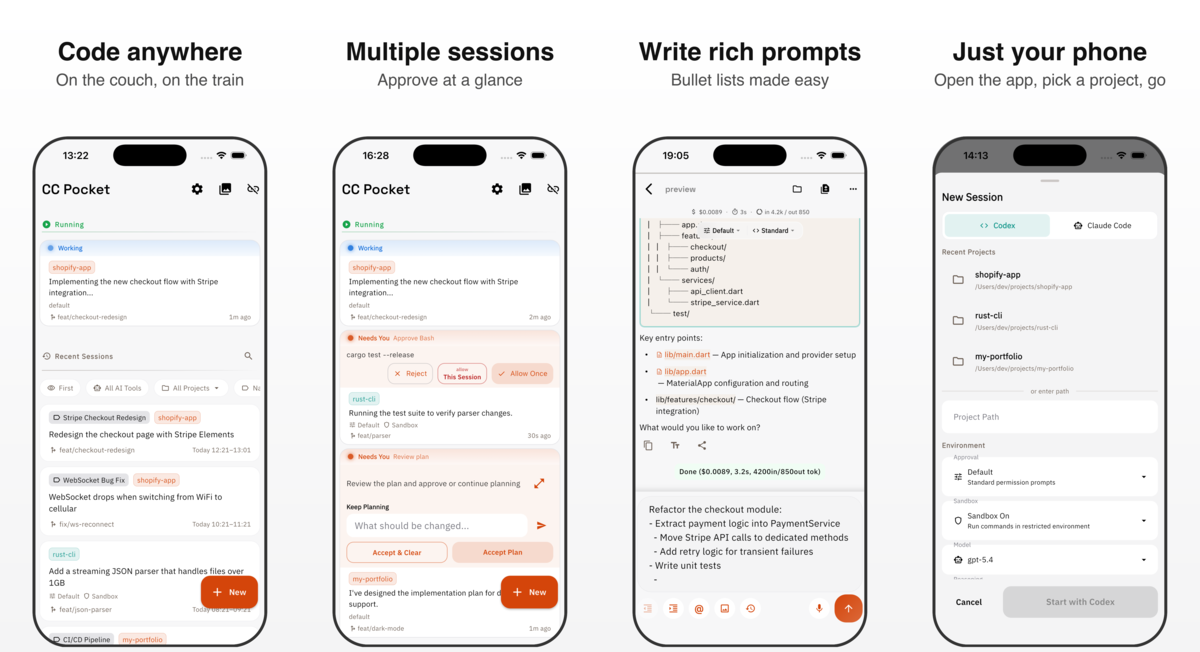
CC Pocket lets you control OpenAI Codex from your phone while Codex keeps running on your own Mac or Linux machine. Use it to start sessions, approve commands, answer questions, and review diffs away from your desk.
What you need
- A Mac or Linux machine that can access your projects.
- OpenAI Codex installed and signed in on that machine.
- Node.js 20.18.1 or newer for the CC Pocket Bridge Server.
- CC Pocket installed on iPhone, iPad, or Android.
Setup
1. Start the Bridge Server
On the machine where Codex is installed, run:
npx @ccpocket/bridge@latest
The Bridge Server runs locally and prints a QR code for pairing the mobile app.
2. Connect from your phone
Open CC Pocket and scan the QR code. On the same network, this is usually enough. For remote access from outside your home or office, use Tailscale and connect to your machine's Tailscale address.
3. Start a Codex session
Choose a project, select Codex, and start the session. CC Pocket becomes the mobile control surface while the agent keeps working on your host machine.
What you can do from mobile
- Start and resume Codex sessions.
- Approve shell commands, file edits, and other permission requests.
- Answer agent questions without opening a laptop.
- Follow streaming output and review git diffs.
- Receive push notifications when a session needs attention.
Privacy model
CC Pocket is self-hosted. Your code and coding-agent process stay on your own machine. The mobile app talks to your Bridge Server over your network or a private remote-access setup such as Tailscale.
Looking for Codex remote control?
Read the product overview for Codex remote control on iPhone, Android, iPad, and Mac.